How to Generate a Table Official Profile
Step-by-step guide to registering as a table official and documenting your experience
How to Generate a Table Official Profile
This guide walks you through the process of registering as a table official on the CBL platform. Table officials are essential for game operations, handling scorekeeping, timing, and other game management duties.
Prerequisites
Before you begin, ensure you have:
- An active CBL account
- Your table official credentials ready (certificates, training documents, etc.)
- Information about your experience as a table official
Step-by-Step Instructions
Step 1: Navigate to Table Official Registration
- Log in to your CBL account
- Click on your profile icon in the navigation bar
- Select "Register as Table Official" from the dropdown menu
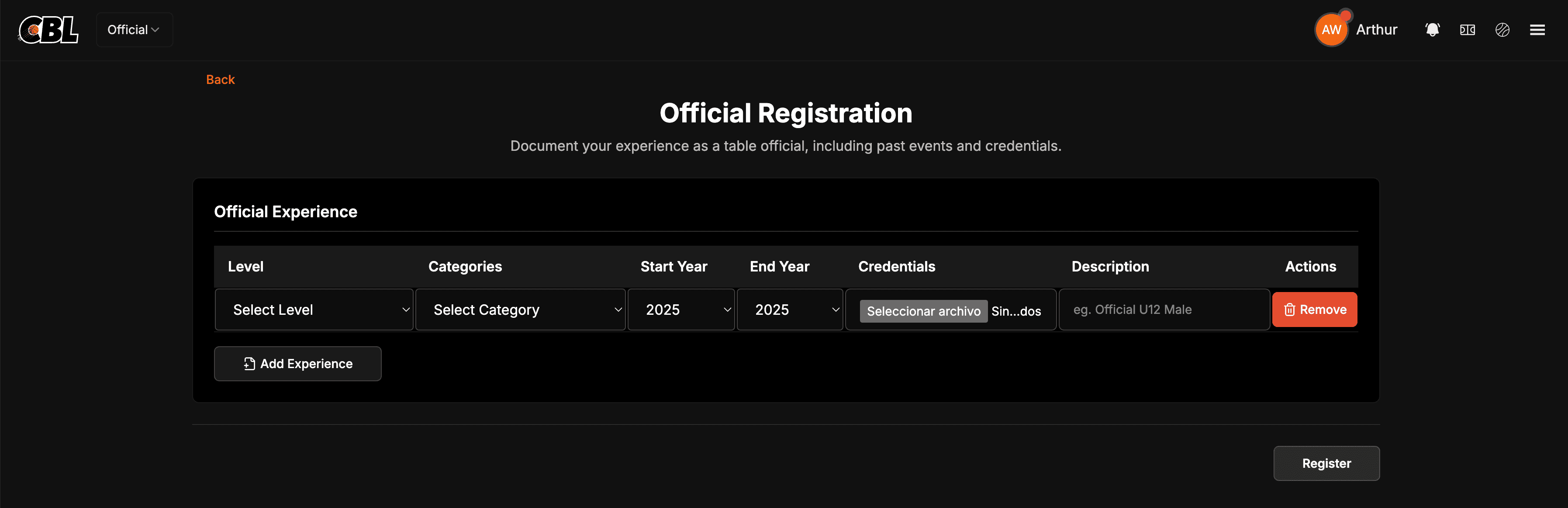
Step 2: Add Your Experience
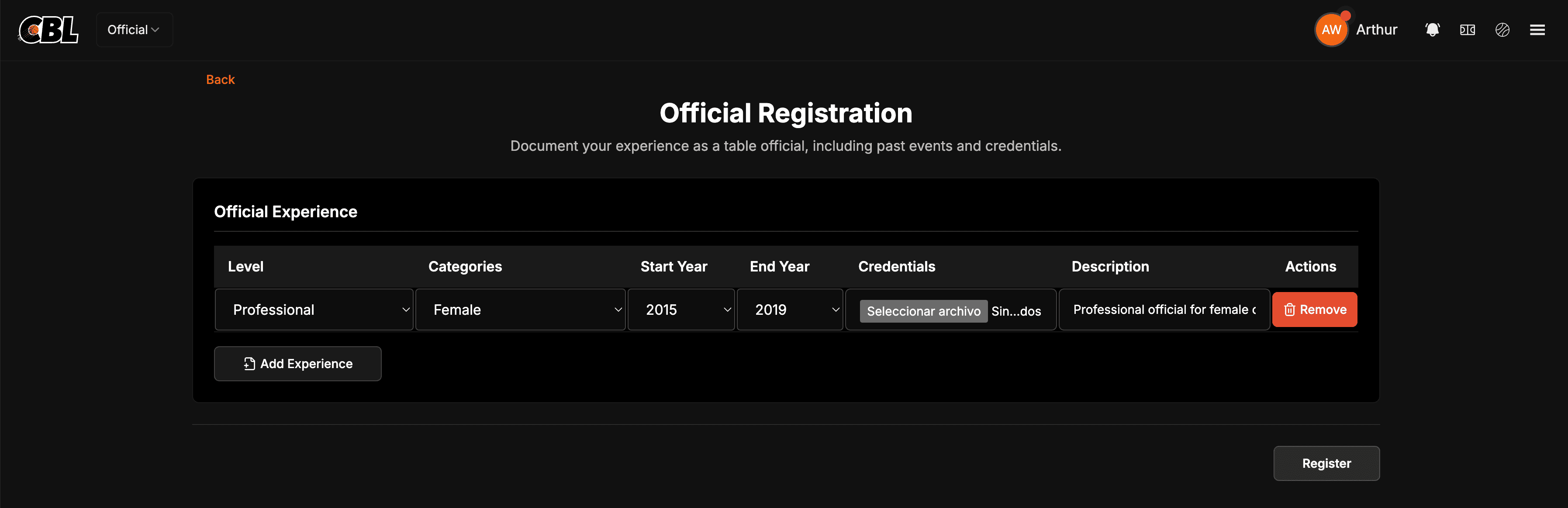
The registration form requires you to document at least one table official experience entry.
For each experience, you'll need to provide:
| Field | Description | Required |
|---|---|---|
| Level | Your officiating level | Yes |
| Category | The category you work in | Yes |
| Start Year | When you started | Yes |
| End Year | When you ended (or current) | Yes |
| Credentials | Supporting documents | No |
| Description | Additional details | No |
Available Experience Levels
- International
- Professional
- National
- State
- District
- School
- Club
- Friendly game
Step 3: Upload Credentials (Optional)
You can upload supporting documents for each experience entry:
- Click the "Upload" button next to the credentials field
- Select your certificate or training document
- Wait for the upload to complete
File Requirements: - Maximum file size: 2MB - Supported formats: PDF, JPG, PNG
Step 4: Add Multiple Experiences
If you have experience at multiple levels or categories:
- Click the "Add Experience" button
- Fill in the details for your additional experience
- Repeat as needed
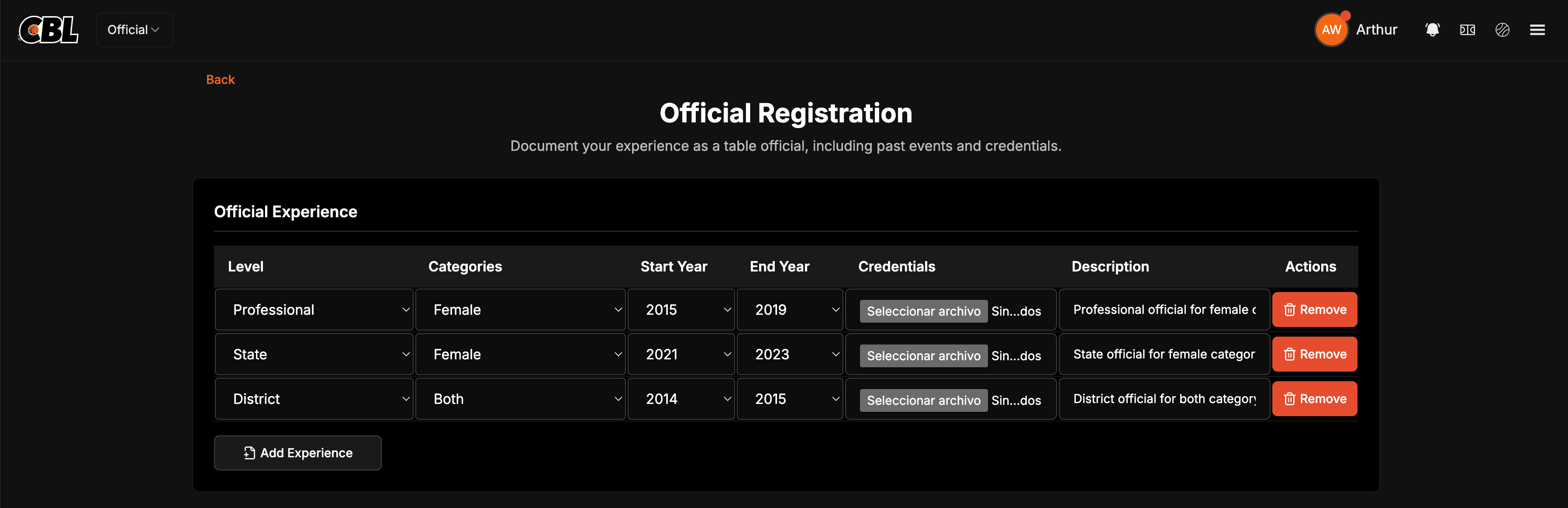
Documenting diverse experience helps tournament organizers match you with appropriate events.
Step 5: Submit Registration
- Review all your entries for accuracy
- Click the "Submit" button
- Wait for the confirmation message
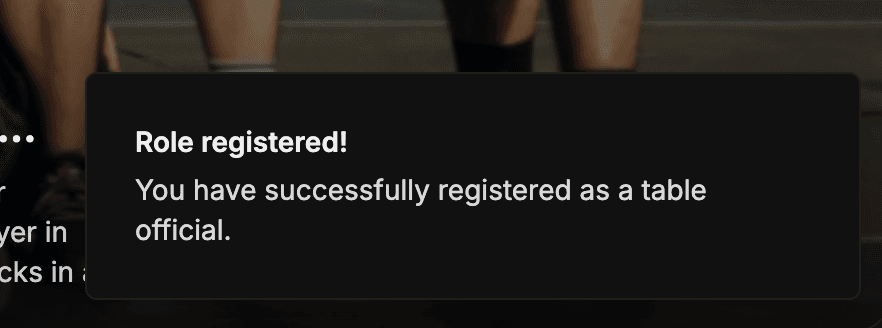
After Registration
Once your registration is successful:
- You'll be redirected to your home dashboard
- Your table official profile will be accessible at
/official/[your-id] - Tournament organizers can now find and invite you to events
- You can edit your profile anytime by visiting your profile page
Managing Your Table Official Profile
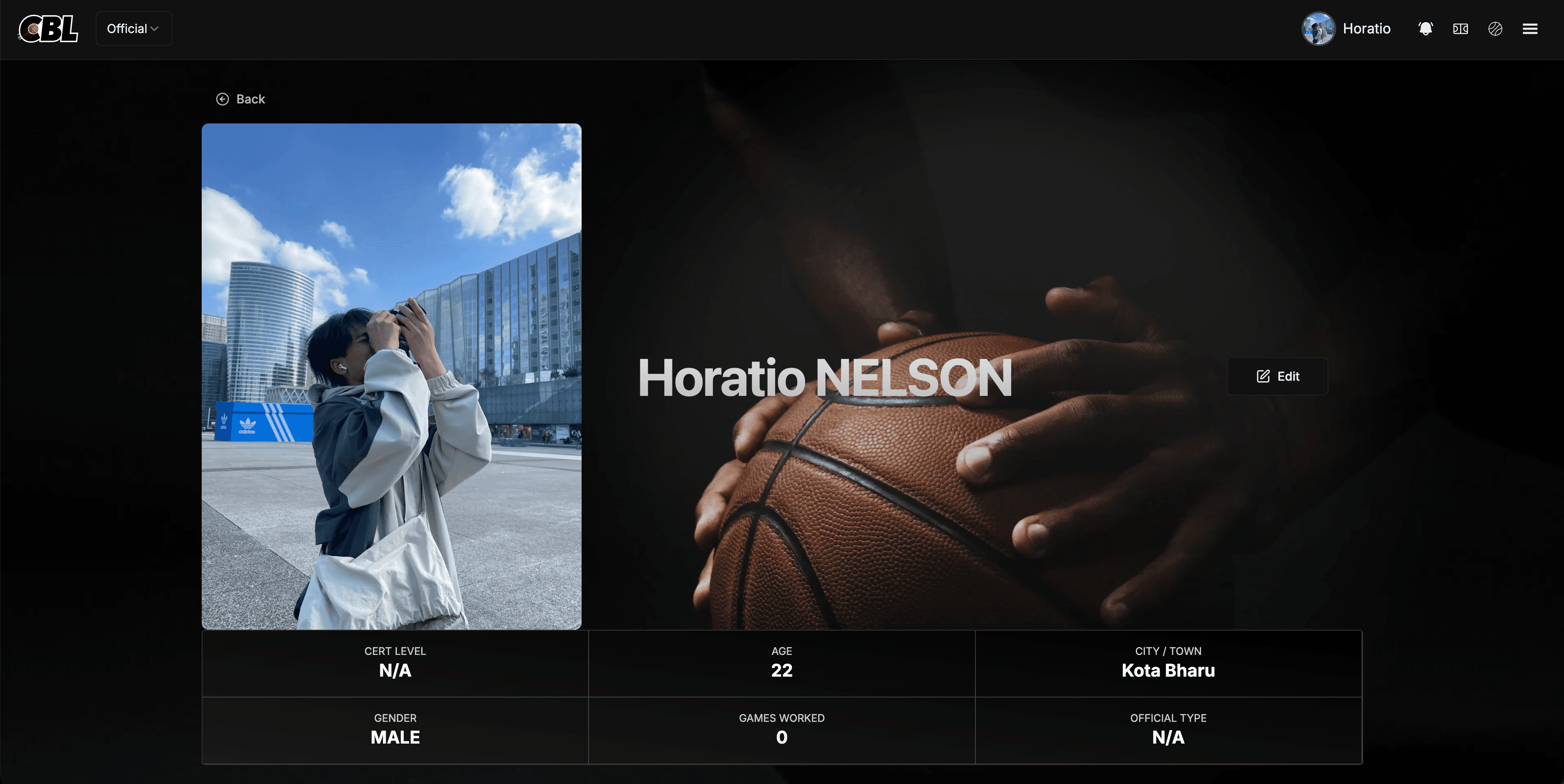
Viewing Your Profile
Navigate to your table official profile to see:
- Your experience history
- Uploaded credentials
- Pending tournament invitations
- Statistics (certification level, games worked, etc.)
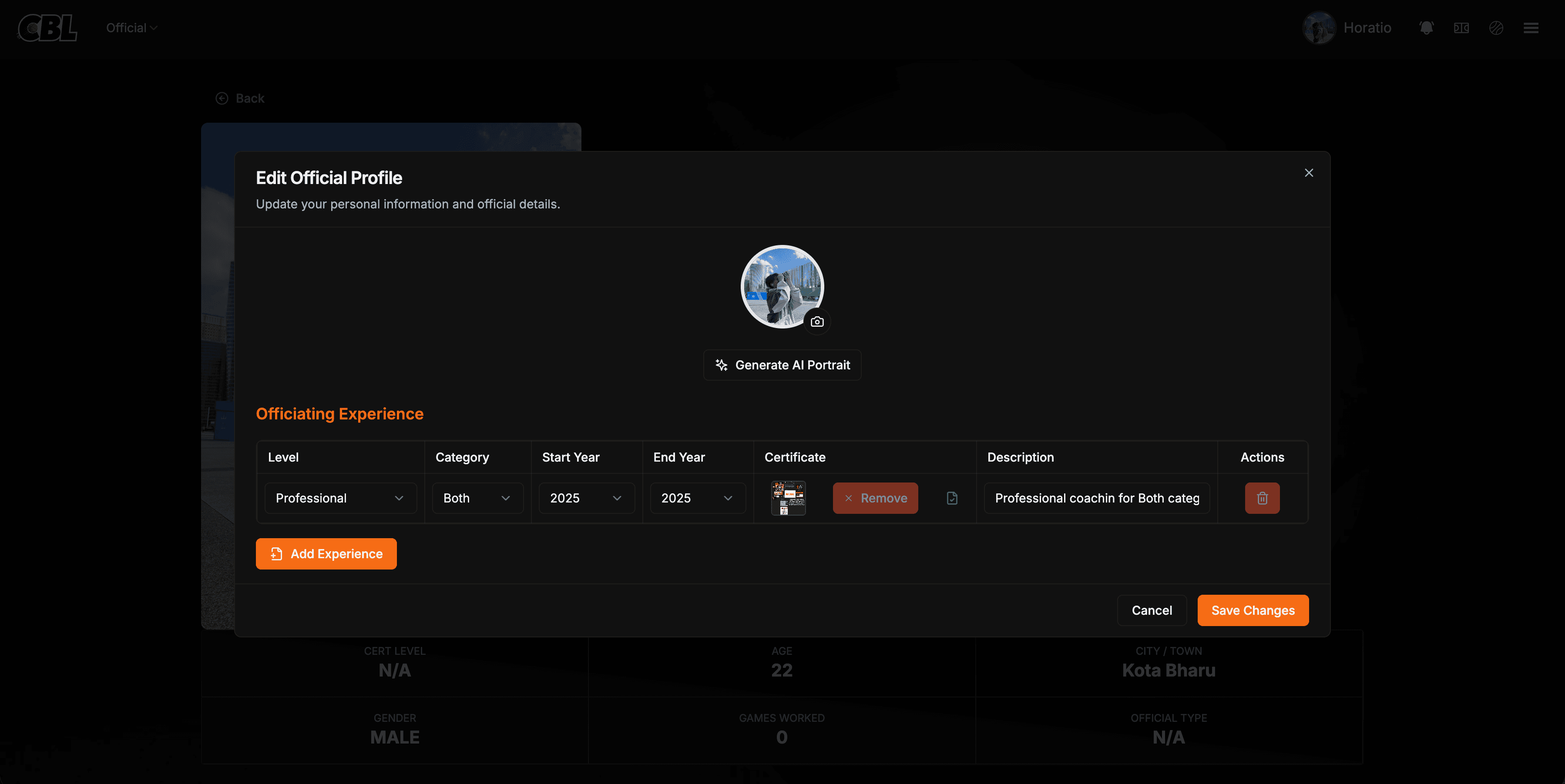
Editing Your Profile
- Go to your table official profile page
- Click the "Edit" button (only visible to you)
- Update your experiences or add new ones
- Save your changes
Responding to Tournament Invitations
When tournament organizers invite you:
- Visit your table official profile
- Scroll to the "Invitations" section
- Review each invitation card showing tournament details
- Click "Accept" or "Reject" for each invitation
Table Official Responsibilities
As a registered table official, you may be assigned to:
- Scorekeeping - Recording points, fouls, and game statistics
- Timing - Managing game clock and shot clock
- Shot Clock Operation - Resetting and monitoring the shot clock
- Statistics Recording - Tracking player and team statistics
Troubleshooting
Common Issues
Q: I can't upload my credential file
- Ensure the file is under 2MB
- Check that the file format is supported (PDF, JPG, PNG)
- Try compressing the file if it's too large
Q: I don't see my profile after registration
- Refresh the page
- Log out and log back in
- Contact support if the issue persists
Q: What's the difference between Referee and Table Official?
- Referees officiate on the court, making calls and enforcing rules
- Table Officials manage game operations from the scorer's table
Q: Can I register as both?
- Yes! You can register for multiple roles on the platform