How to Use Attendance Confirmation (Team Manager)
Step-by-step guide for Team Managers to confirm player attendance and assign jersey numbers
How to Use Attendance Confirmation
This guide walks Team Managers through the process of confirming player attendance and assigning jersey numbers for upcoming games. This feature helps Event Organizers prepare game rosters efficiently.
Overview
The attendance confirmation system is a two-step process:
- Claim the Invitation - Accept team management responsibility
- Confirm Attendance - Mark which players will attend and assign jersey numbers
Prerequisites
Before you begin, you'll need:
- A team invitation link from the Event Organizer
- A CBL account (or willingness to create one)
- Knowledge of which players will attend the game
Step-by-Step Instructions
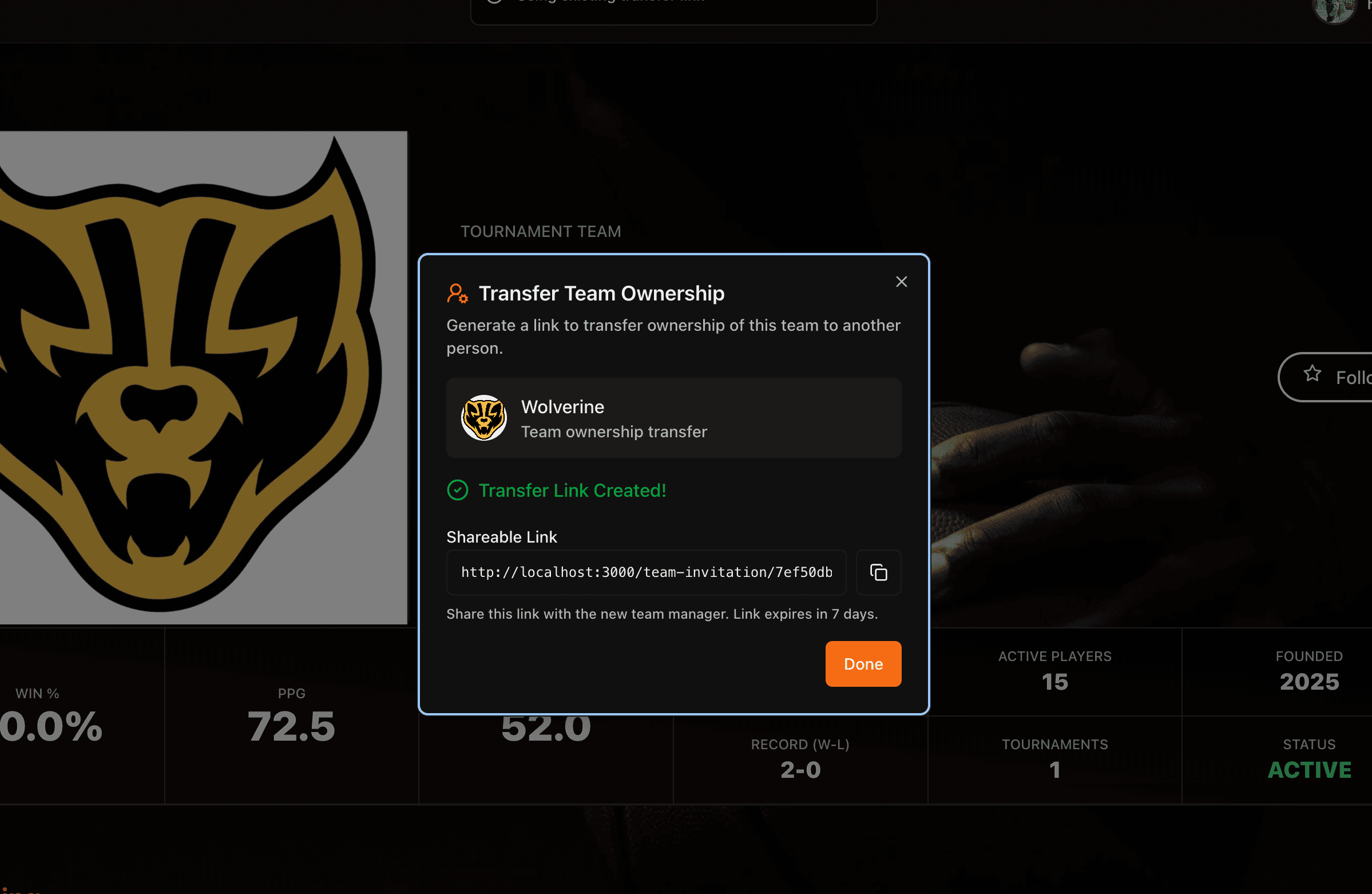
Step 1: Receive the Invitation Link
The Event Organizer will send you a shareable link that looks like:
https://cbl-app.org/team-invitation/[unique-token]This link is valid for 7 days from creation.
Step 2: Open the Invitation Preview
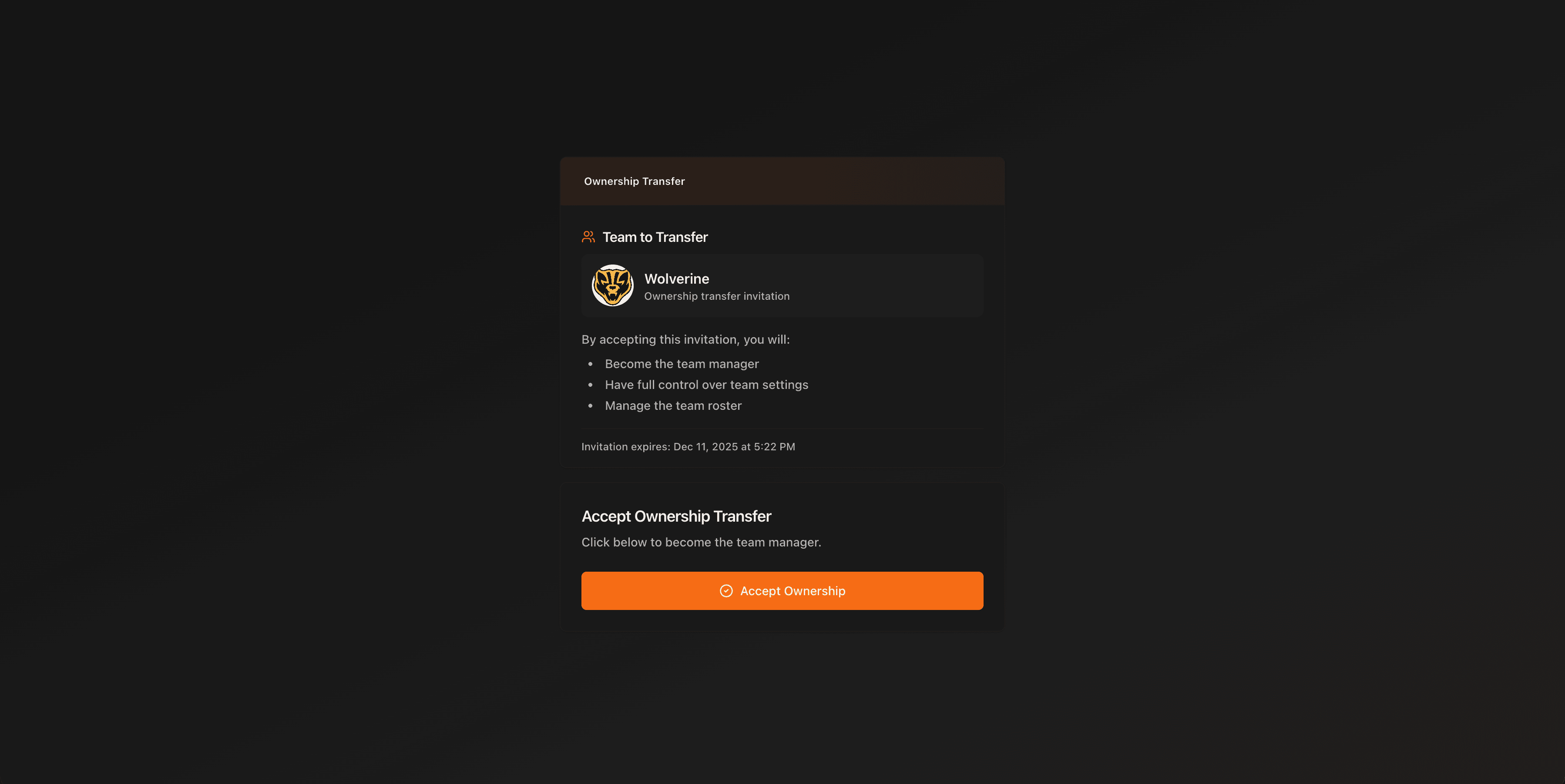
- Click the invitation link
- You'll see a preview card showing:
- Your team name and logo
- The opponent team
- Game date, time, and venue
- Tournament category
- Link expiration date
Step 3: Sign In or Create Account
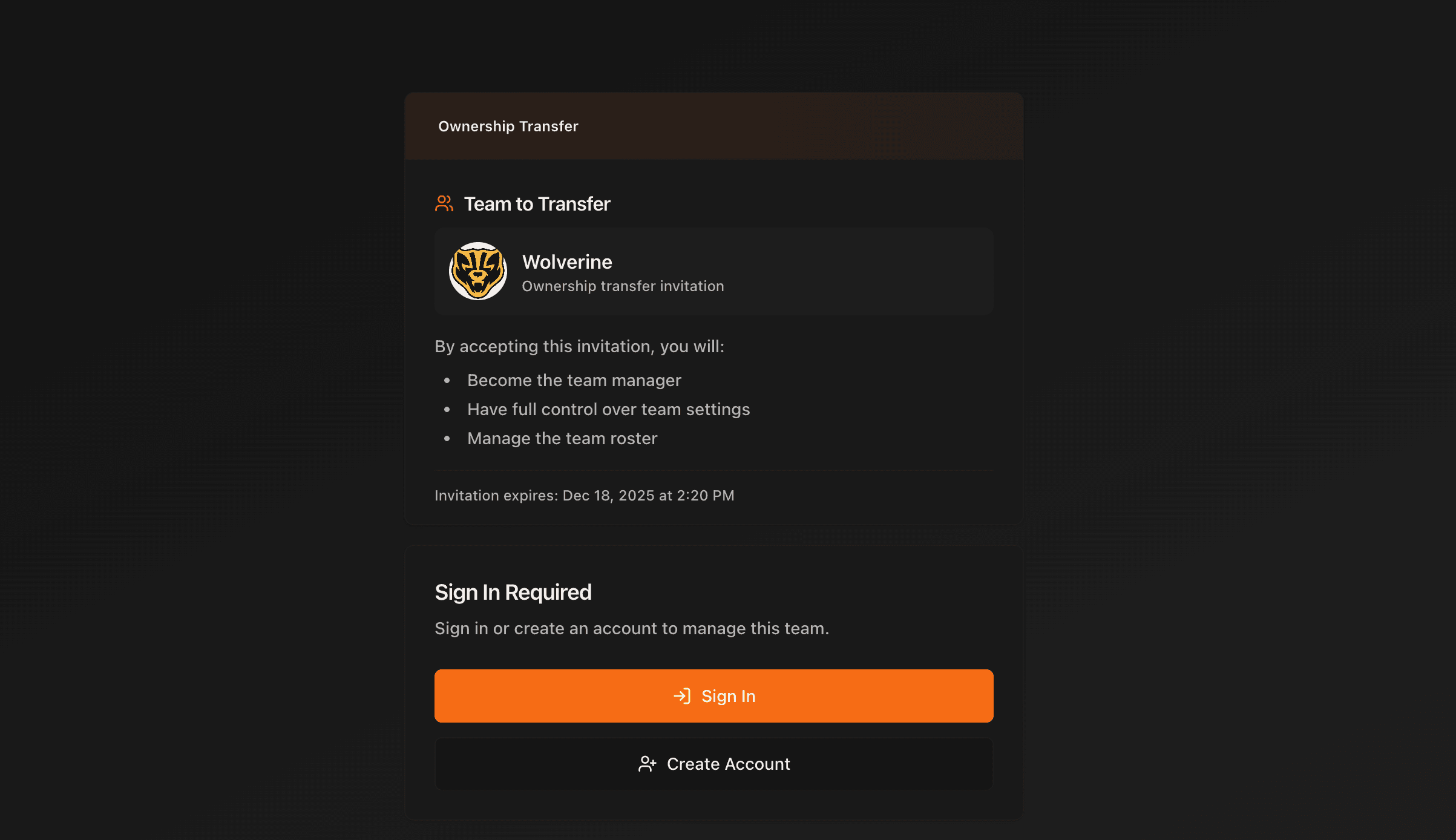
If you're not already logged in:
- Click "Sign In" or "Create Account"
- Complete the authentication process
- You'll be redirected back to the invitation page
You can use magic link authentication (email) or create a new account if you don't have one.
Step 4: Claim the Invitation
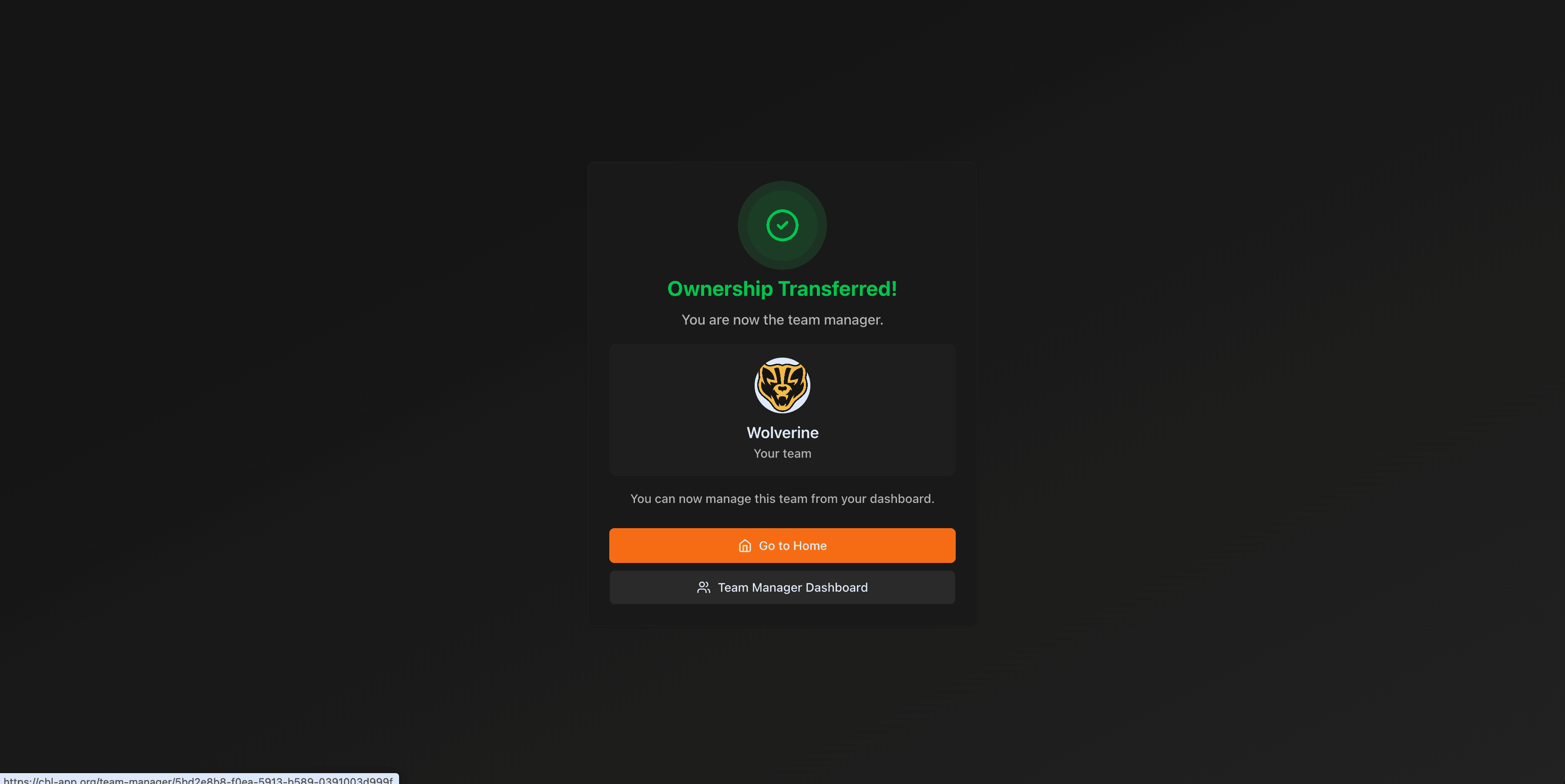
Once authenticated:
- Review the invitation details
- Click "Accept Team Management" or "Accept Ownership"
- The system will:
- Create or verify your Team Manager record
- Transfer team ownership to you
- Update the invitation status
Important: Claiming the invitation transfers team ownership to you. Make sure you're the authorized Team Manager for this team.
Step 5: Confirm Player Attendance
After claiming, you'll see the Attendance Form with:
- Team and opponent information
- List of all players in the tournament roster
- Checkbox for each player's attendance
- Jersey number input for attending players
For Each Player:
- Check the attendance box if the player will attend
- Enter the jersey number for attending players
- Leave unchecked for players not attending
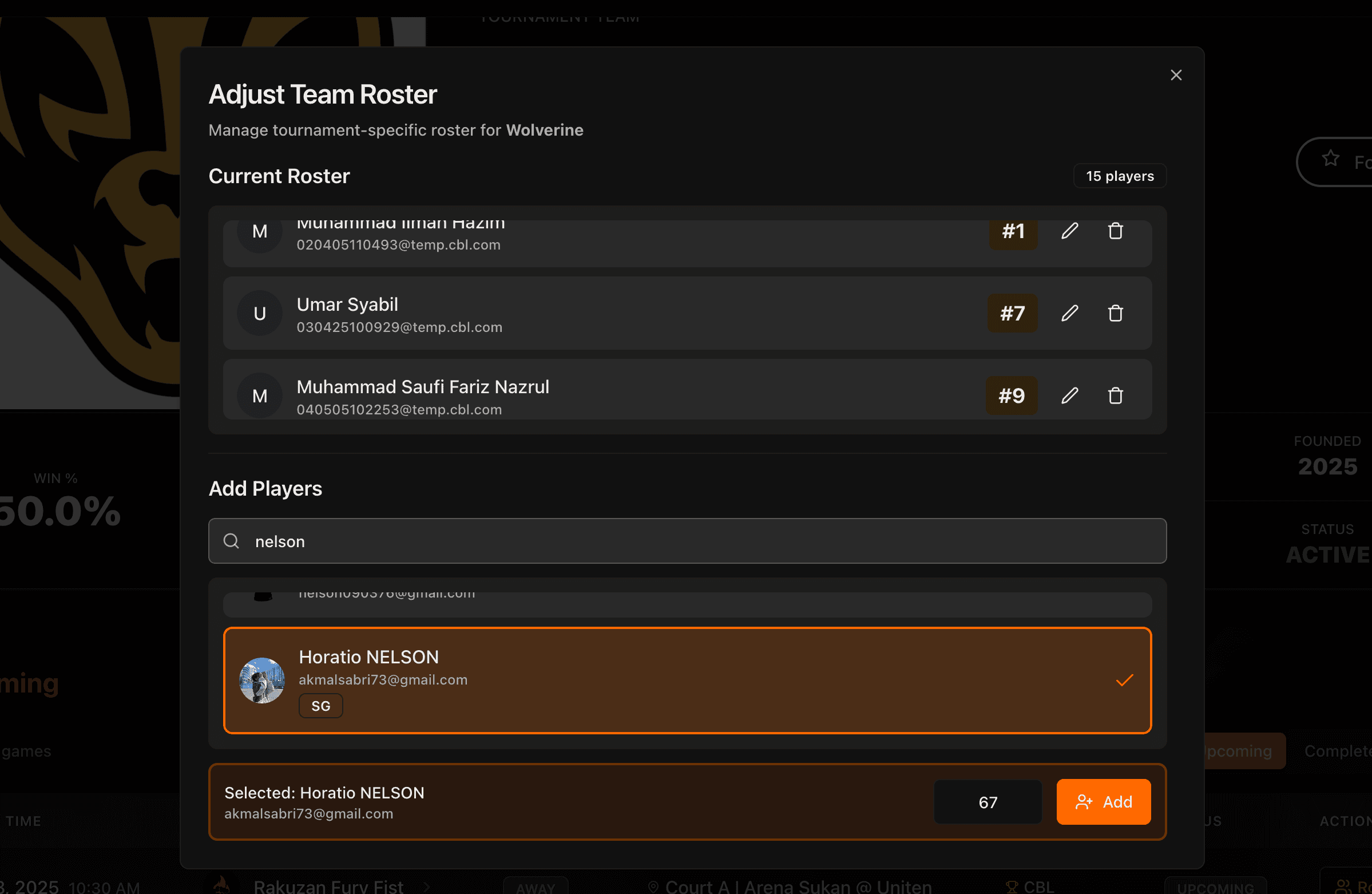
Step 6: Assign Jersey Numbers
For each attending player:
- Enter their jersey number in the input field
- Ensure numbers are unique (no duplicates allowed)
- The system shows available jerseys from your team's inventory
Jersey Number Rules: - Each attending player must have a jersey number - Jersey numbers must be unique within the team - Only available jerseys from your team/tournament can be assigned
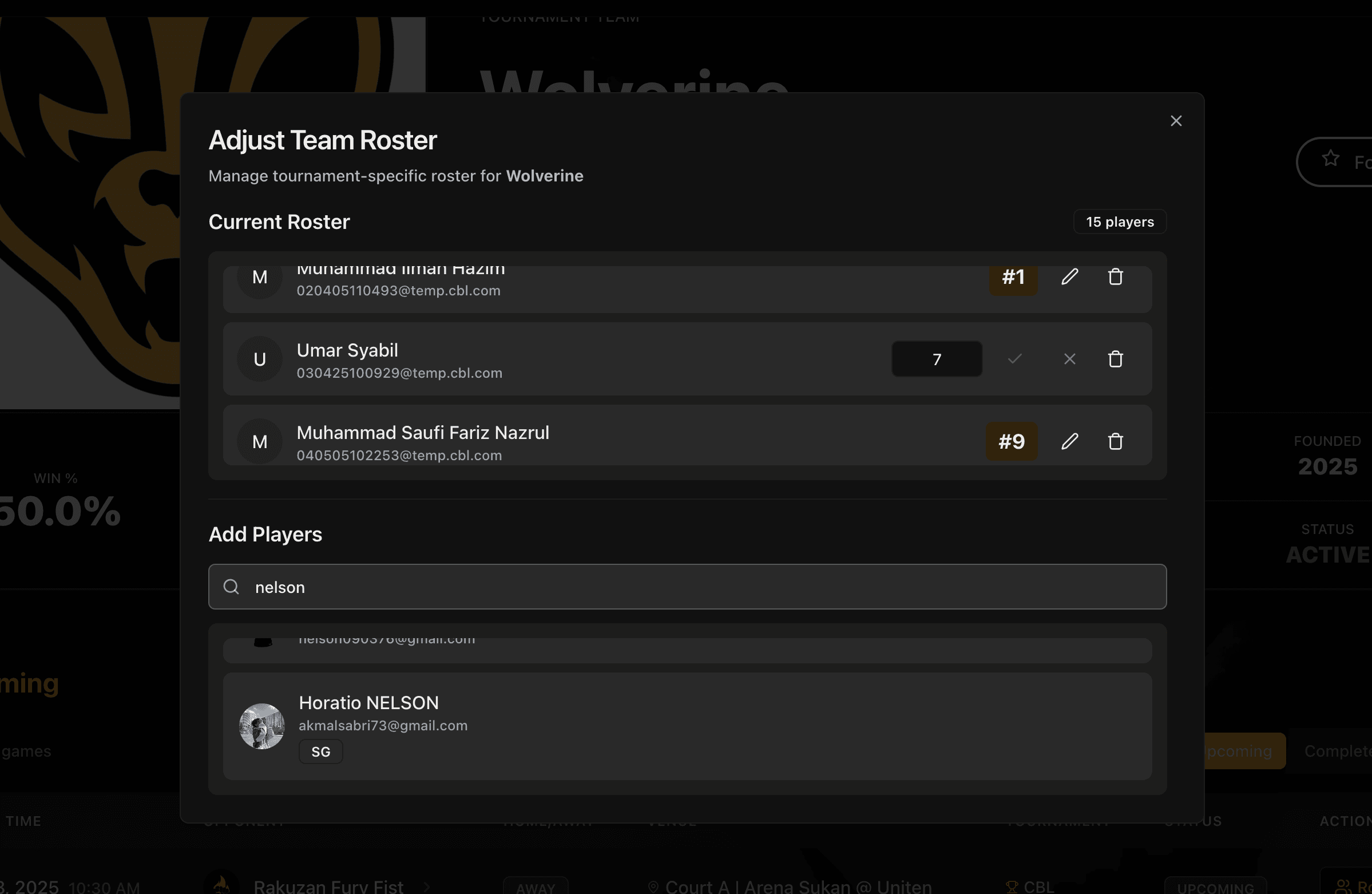
Step 7: Submit Confirmation
- Review your selections carefully
- Ensure all attending players have jersey numbers
- Click "Submit Confirmation"
- Wait for the success message
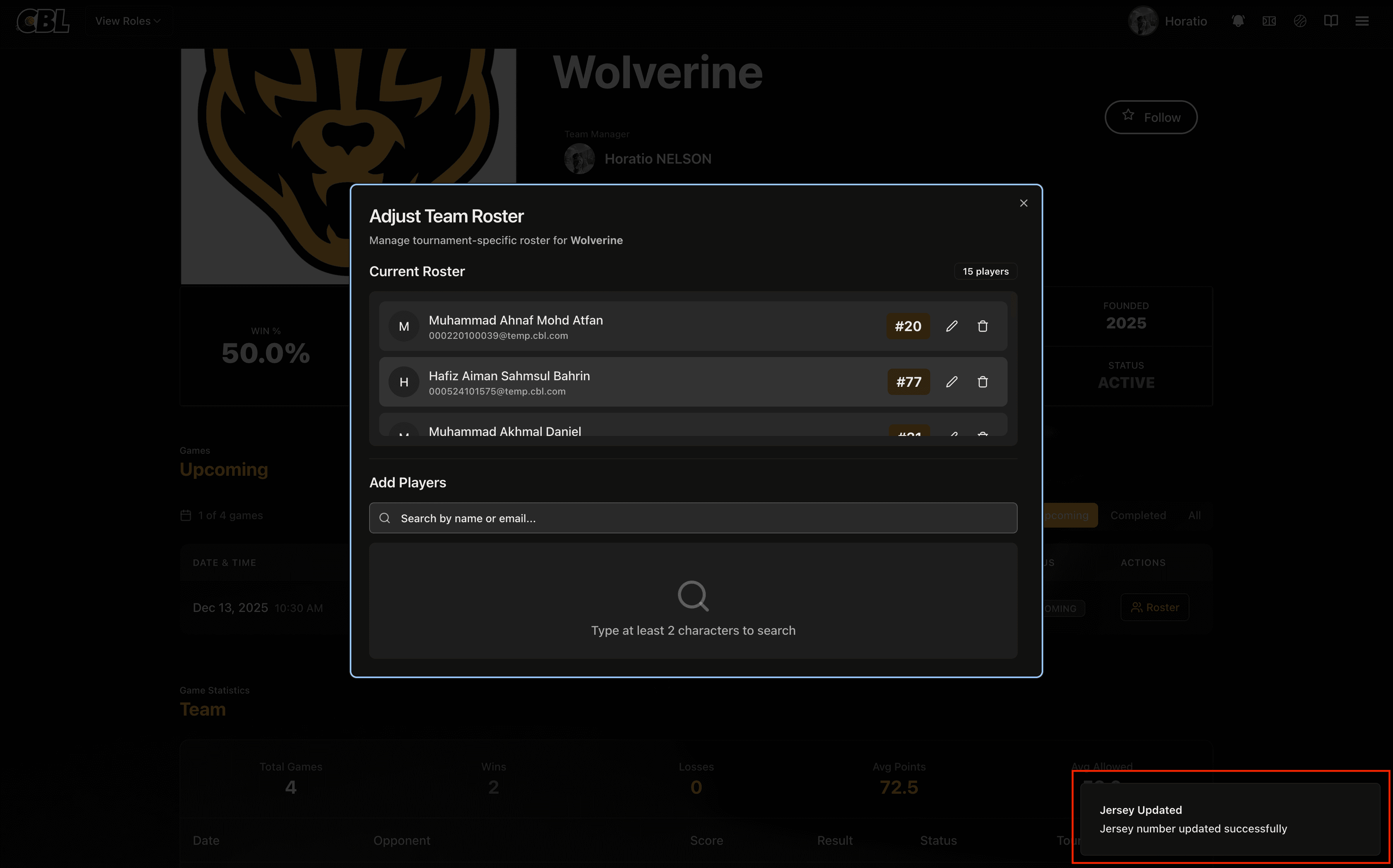
After Confirmation
Once submitted:
- The invitation status changes to "Completed"
- Attending players are added to the game roster with status "ACTIVE"
- Non-attending players are removed from the game roster
- Event Organizers can see the confirmed roster
Managing Pending Confirmations
From Your Team Manager Dashboard
- Navigate to your Team Manager profile
- Look for the "Pending Attendance Confirmations" card
- You'll see all invitations for teams you manage with:
- Team logo and name
- Status badge ("Pending Claim" or "In Progress")
- Opponent name
- Game date and category
Quick Actions
| Status | Button | Action |
|---|---|---|
| Pending | "View & Claim" | Open and claim the invitation |
| Claimed | "Confirm Roster" | Complete attendance confirmation |
Invitation Status Flow
Pending → Claimed → Completed
           ↓
        Expired (after 7 days)
For Event Organizers
Generating Invitation Links
- Go to game or tournament management
- Click "Send Team Invitation"
- Select the team
- Click "Generate Link"
- Share the link with the Team Manager
The dialog shows what the invitation enables:
- Accept team management responsibility
- Confirm which players will attend
- Assign jersey numbers for the game
Checking Confirmation Status
Event Organizers can monitor:
- Which invitations have been claimed
- Which rosters have been confirmed
- Player attendance and jersey assignments
Troubleshooting
Common Issues
Q: The invitation link doesn't work
- Check if the link has expired (7-day validity)
- Contact the Event Organizer for a new link
- Ensure you're using the complete URL
Q: I can't claim the invitation
- You may have already claimed it
- The invitation might be expired
- Try logging out and back in
Q: Jersey number validation fails
- Ensure no duplicate numbers
- Check that the jersey is available
- All attending players must have numbers assigned
Q: I need to change attendance after submission
- Contact the Event Organizer
- They may need to generate a new invitation
- Or manually adjust the game roster
Q: I claimed but didn't finish confirmation
- Return to the same invitation link
- Or use your Team Manager dashboard
- Your progress is saved until you complete it
Best Practices
- Confirm early - Don't wait until the last minute
- Double-check jersey numbers - Verify with players their preferred numbers
- Communicate with players - Ensure you know who's available before confirming
- Keep the link private - Don't share it publicly